

Maintaining accurate customer contact information ensures that your communications are delivered successfully. Depending on your dealership’s DMS, these updates may happen automatically or require a manual request.
Here is the breakdown of how updates work based on the system you use.
Automatic Updates (PBS, CDK, Reynolds, or Tekion)
If your dealership uses one of these systems, your data is automatically synced.
Simply update the customer’s information directly in your DMS. Drive AI receives a daily data file from these providers and will reflect those changes within 24 hours. No further action is required in the Drive AI portal.
Manual and Transaction-Based Updates for Other DMS Providers
If you are not using one of the DMS tools listed above, the update process works in one of two ways:
Update via DMS Only (Sync on next transaction):
If you only update the information in your DMS, Drive AI will not sync the change immediately. The update will occur automatically the next time that customer completes a new transaction at the dealership.
Update via DMS and Drive AI Portal request:
If you need the info updated in Drive AI immediately, you must first update the details in your DMS, then submit a request through the Drive AI portal with a screenshot for verification. This allows our team to update the record without waiting for a new transaction.
Steps to submit a manual update request in Drive AI
📌Important: Before starting this process, ensure you have already saved the new customer details in your DMS. You will need a screenshot of the updated DMS record to complete your request.
To request an immediate update for a customer profile, follow these steps:
Log in to the Drive AI portal.
Navigate to the Customers tab on the left panel and select Overview.
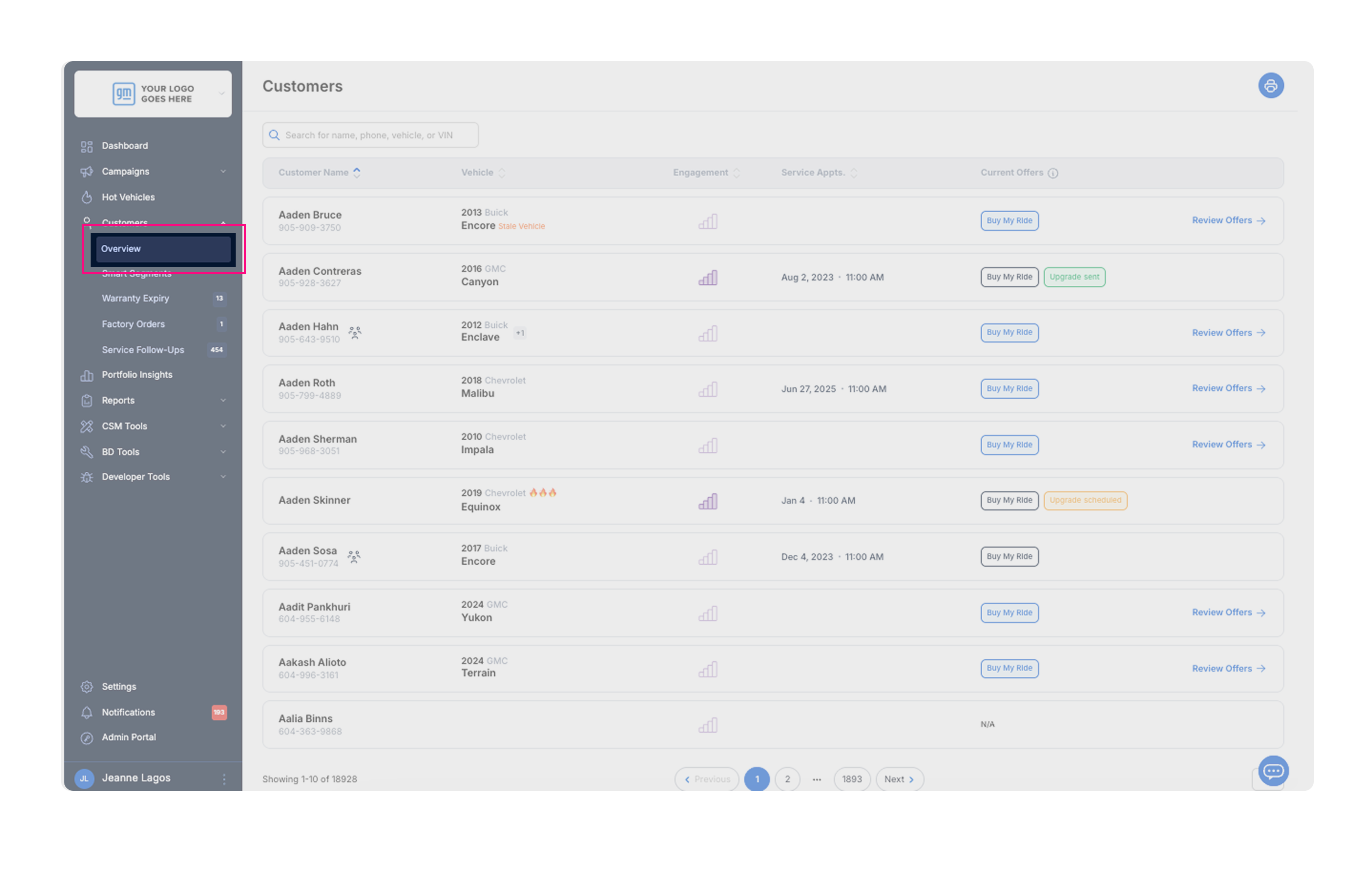
Search for the customer by name and click on their profile.
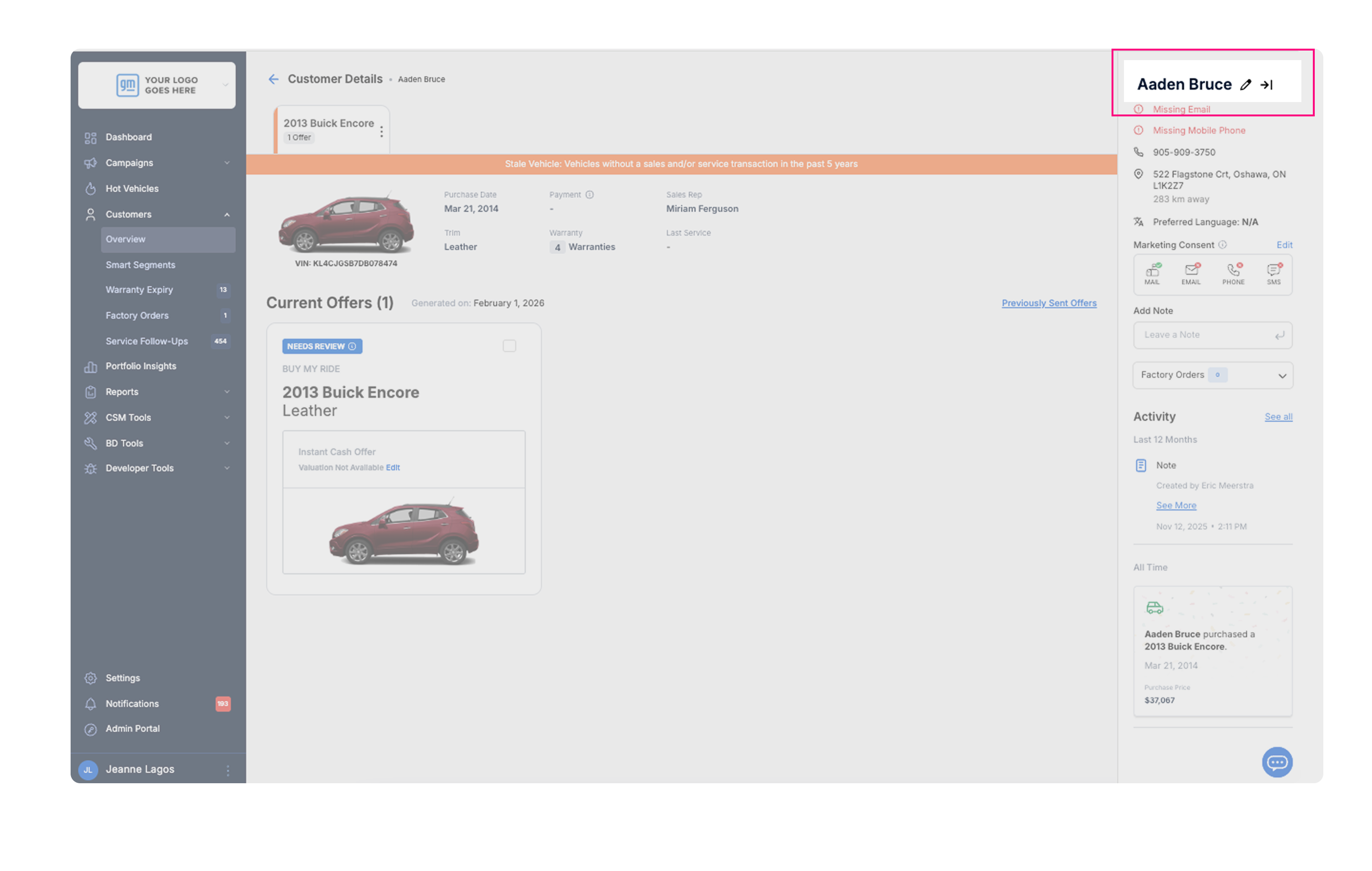
Locate the Pencil Icon next to the customer’s name in the upper right corner and click it.
On the Customer Info Update Request page, select the specific fields you wish to update.
Upload a screenshot of the updated information in your DMS to verify the change.
Click Submit.
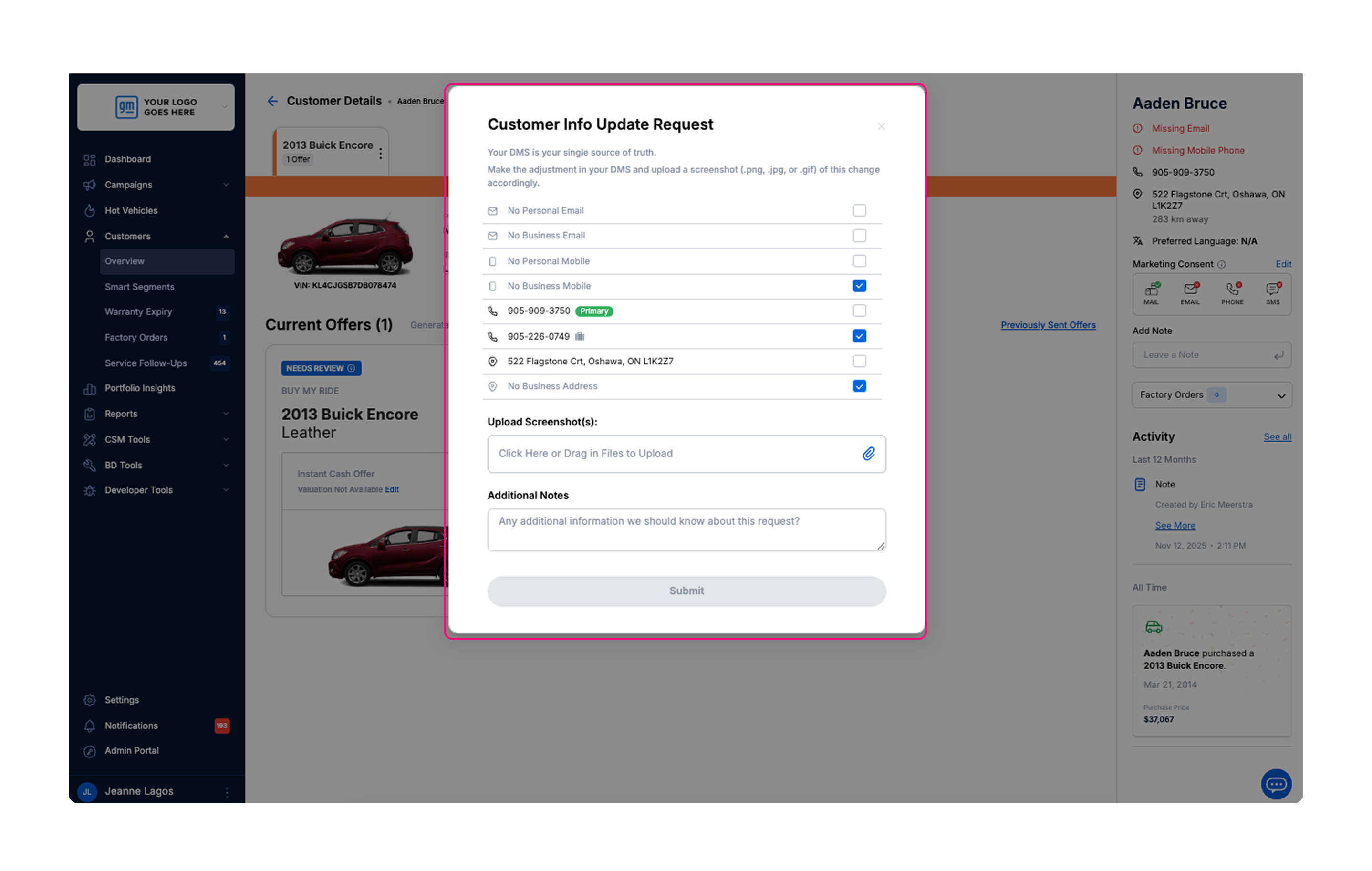
Once submitted, our admin team will review the request and update the customer’s profile.
Need further assistance? If you have questions regarding your DMS integration or need help with a specific request, please contact our support team at support@unleashd.ca.