

Your service drive juggles appointments, updates, and customers every day. Now, there’s one less thing to manage: manually sending Upgrade and Buy My Ride offers.
You already trust Drive AI to generate offers that match your rules, now, for Service Drive Customers, those offers can be sent automatically.
No extra clicks. No added effort.
Just the right offer, at the right time, so your team can stay focused on what matters most: your customers.
What is Automate Ready to Send?
This feature allows SMS and email offers in your “Ready to Send” bucket for Service Drive customers to go out automatically, based on your pre-approved settings.
How It Works
✅ Digital Offers (SMS & Email):
Automatically scheduled as soon as they land in the “Ready to Send” bucket, based on your set schedule.
✅ Print Offers:
Auto-generated and saved under your Notifications tab, ready for you to download and print.
✅ Set Your Own Schedule:
Once the automation toggle is turned on, you’ll see two new scheduling options:
Service Days Ahead – Choose how many days before the customer’s service date the offer is sent (e.g. 1, 2, or 3 days).
Deployment Time – Choose what time of day the offer is sent.
This means you control when offers go out, so they’re timely and relevant.
Offers Label – Status Definitions
When viewing offers, you will see different labels indicating their current status. Below are the definitions and visuals used:
Need to Edit the Schedule?
If you’d like to adjust your schedule after it's been set, no problem, just contact your Customer Success Manager (CSM). Only your CSM can edit or update the send schedule on your behalf.How to Enable It
Automate Ready to Send must be enabled by your CSM.If you're ready to start, reach out to your Customer Success Manager. They'll turn on the feature and help you set your schedule.
🚀 New: Autopilot Label on Your Dashboard
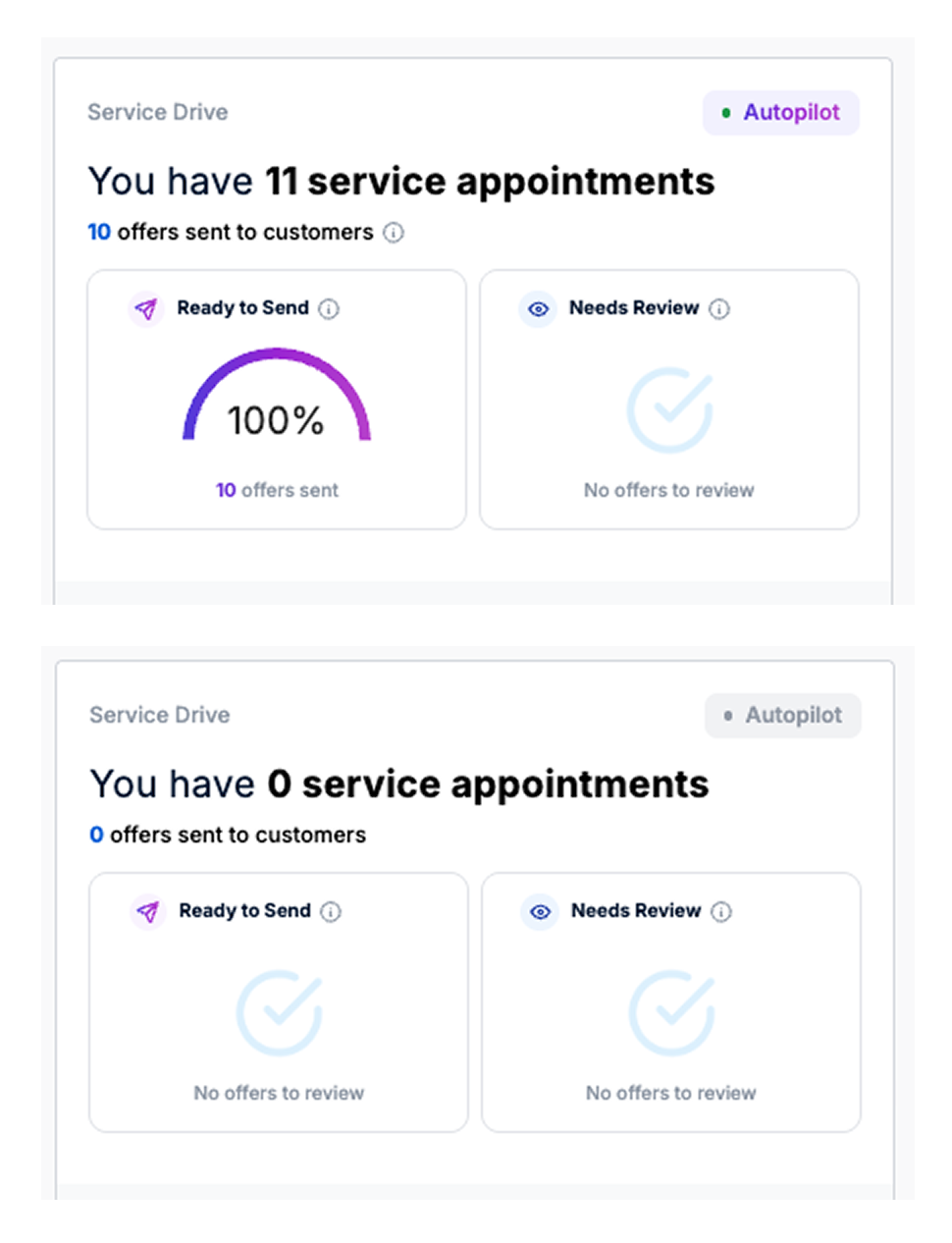
We’ve added a new Autopilot label to your Dashboard so you can instantly see if your Ready to Send offers are being managed for you.
Green Autopilot → This means Automate Ready to Send is on. Your offers are being sent to customers before their service appointments (based on the days ahead and time you’ve set). It’s a hands-off experience, Drive AI takes care of it so you can focus on your customers.
Grey Autopilot → This means Automate Ready to Send is off. Offers won’t go out automatically, and you’ll need to send them manually. If you’d like Drive AI to handle this for you, just contact your CSM to get set up.
🕓 Clarification: Why Some Offers Go Out Earlier Than Your Scheduled Time
You might notice offers going out earlier than your scheduled deployment time (for example, at 7 AM instead of your set 2 PM). Here’s why:
Drive AI collects appointment data overnight.
If your dealership’s automation is set to send offers 2 days before the appointment, but new appointment data comes in on the same day or the following day, Drive AI will send those offers first thing the next morning to ensure customers still receive them on time.
This ensures customers still receive timely offers even for newly added or last-minute appointments, instead of missing the ideal window.
Examples
Dealer setting: Send offers 2 days before the appointment at 2 PM
(So for a Nov 8 appointment, offers are normally sent on Nov 6 at 2 PM.)
Example 1 – Normal Schedule
Appointment: Nov 8
Customer booked: Before Nov 6
Offer sent: Nov 6 at 2 PM
✅ The appointment was already in the system before the send time, so the offer went out as scheduled.
Example 2 – Customer Books on the Same Day Offers Are Scheduled to Go Out
Appointment: Nov 8
Customer booked: Nov 6 (same day offers were set to go out)
Offer sent: Nov 7 at 7 AM
💡 Because the appointment was added after the automation ran on Nov 6, Drive AI sends it the next morning to make sure the customer still gets it in time.
Example 3 – Customer Books the Next Day
Appointment: Nov 8
Customer booked: Nov 7
Offer sent: Nov 8 at 7 AM
💡 Since the appointment was added after the scheduled send date, Drive AI sends the offer early the next morning (on appointment day) to “catch up” and ensure nothing is missed.
Quick Tip:
If an appointment is added after your scheduled send time, Drive AI automatically sends the offer the next morning (around 7 AM), so customers still get their service offers on time.