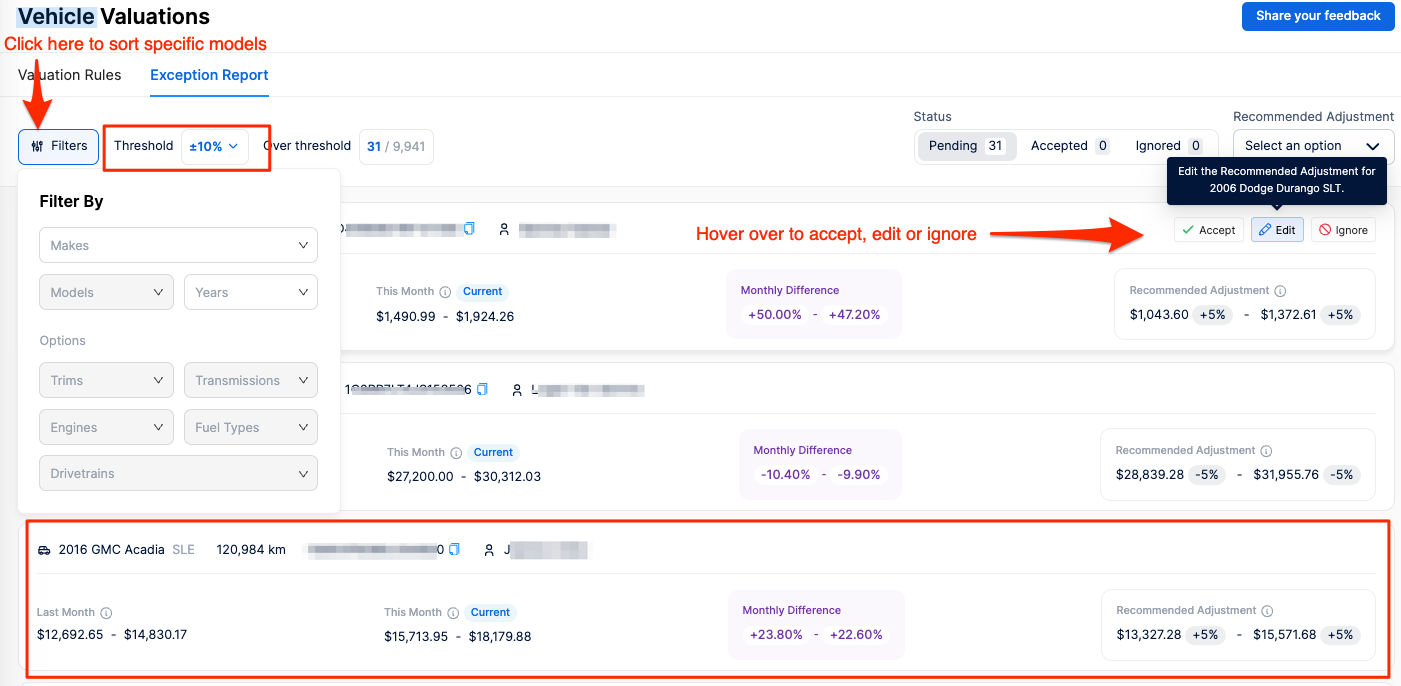
1. Access the valuations exceptions report by navigating to Settings >> Vehicle Valuations >> Exception report (you can use this link: https://driveai.absoluteresults.com/vehicle-valuations#exceptions)
2. Adjust the threshold to display the percentage of fluctuation you wish to see; the default is set to 10%.
3. You can choose to accept, modify, or disregard the fluctuation according to your preferences. Drive Ai will initially suggest a 5% variation by default. Please bear in mind that the adjustment can be either positive or negative, contingent upon the direction of the valuation change for the month.
4. Utilize the filter button to view specific models.
Note: If you wish to view valuations for all models, regardless of fluctuations, change the threshold to 0%. Should you identify entire model lines that do not align with your expectations, please create a Valuation Rule.
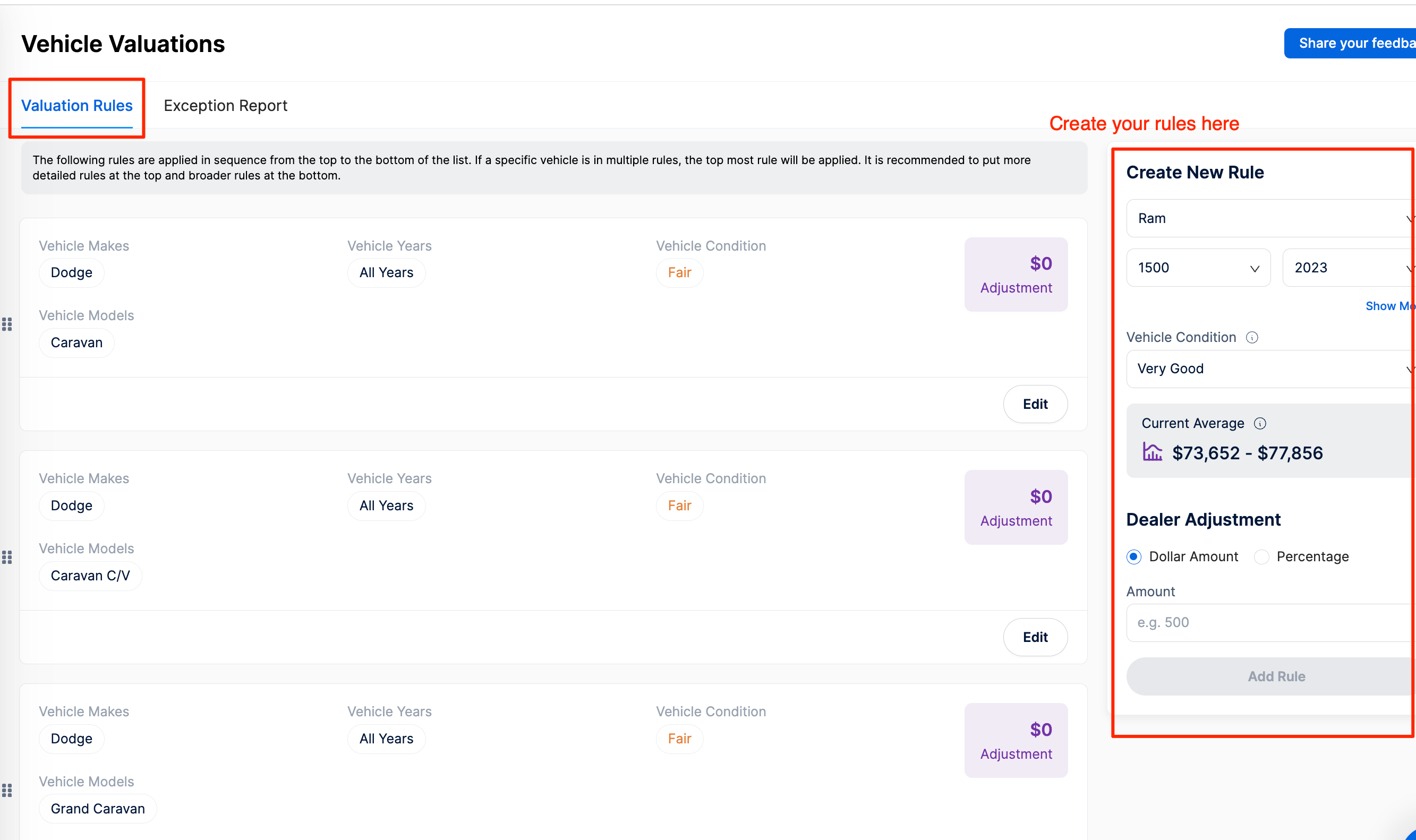
How to create a Valuation Rule:
1. Visit Settings>>Vehicle Valuations>>Valuation Rules (https://driveai.absoluteresults.com/vehicle-valuations#rules)
- 2. Under "Create New Rule," select the Make, Model, and Year for the vehicle you want to create a rule for, or choose multiple models within one make. Adjust the "Vehicle Condition" and optionally add a dollar or percentage adjustment. If you select a specific model and year, you will see the current average valuation.
3. Keep in mind that your rules are prioritized sequentially, from top to bottom. It is advisable to list model/year-specific rules first, followed by more generic rules. For example, if you have a rule for all 2023 Ram 1500’s to be set at Very Good and another rule for all Ram 1500’s to be set at Fair, the 2023 rule should be listed above the generic one. These rules can be edited and sorted directly on the page.